Create
All Memory Maps are created and edited as "Test" versions. Test maps can be used by engineers but will not be used to collect data in the wild until being promoted to "Production" status.
Memory maps are defined using https://quicklink.milwaukeetool.com
Be aware
Test maps must be promoted to Production status by RE before the map will be used to collect data from real tools in the field or at service centers.
It's expected that maps be promoted by RE 4.0
Memory Map Creation Process:
- Navigate to (https://quicklink.milwaukeetool.com/products) and login with your Milwaukee Tool credentials.
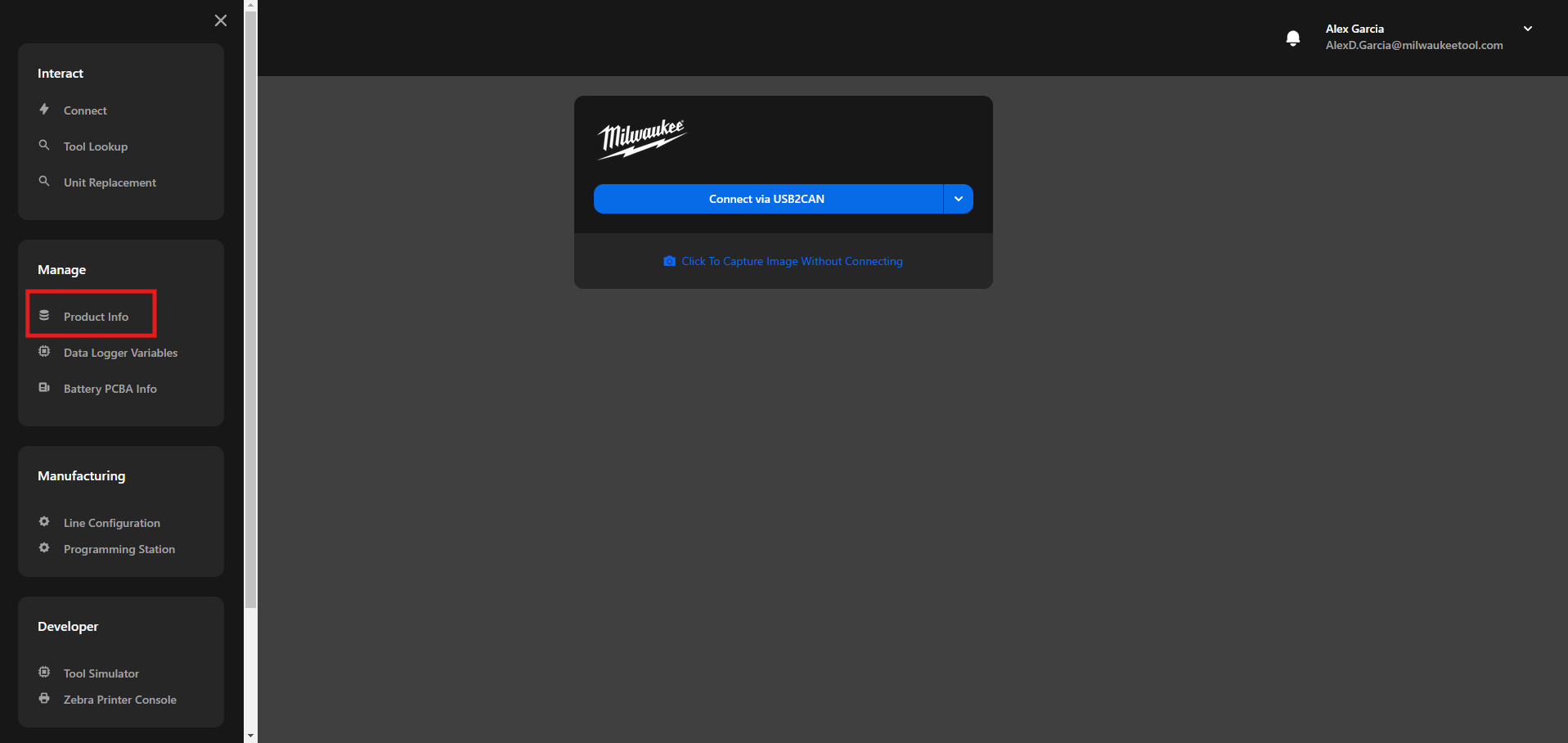
- Click on the “Product Info” in the menu option.
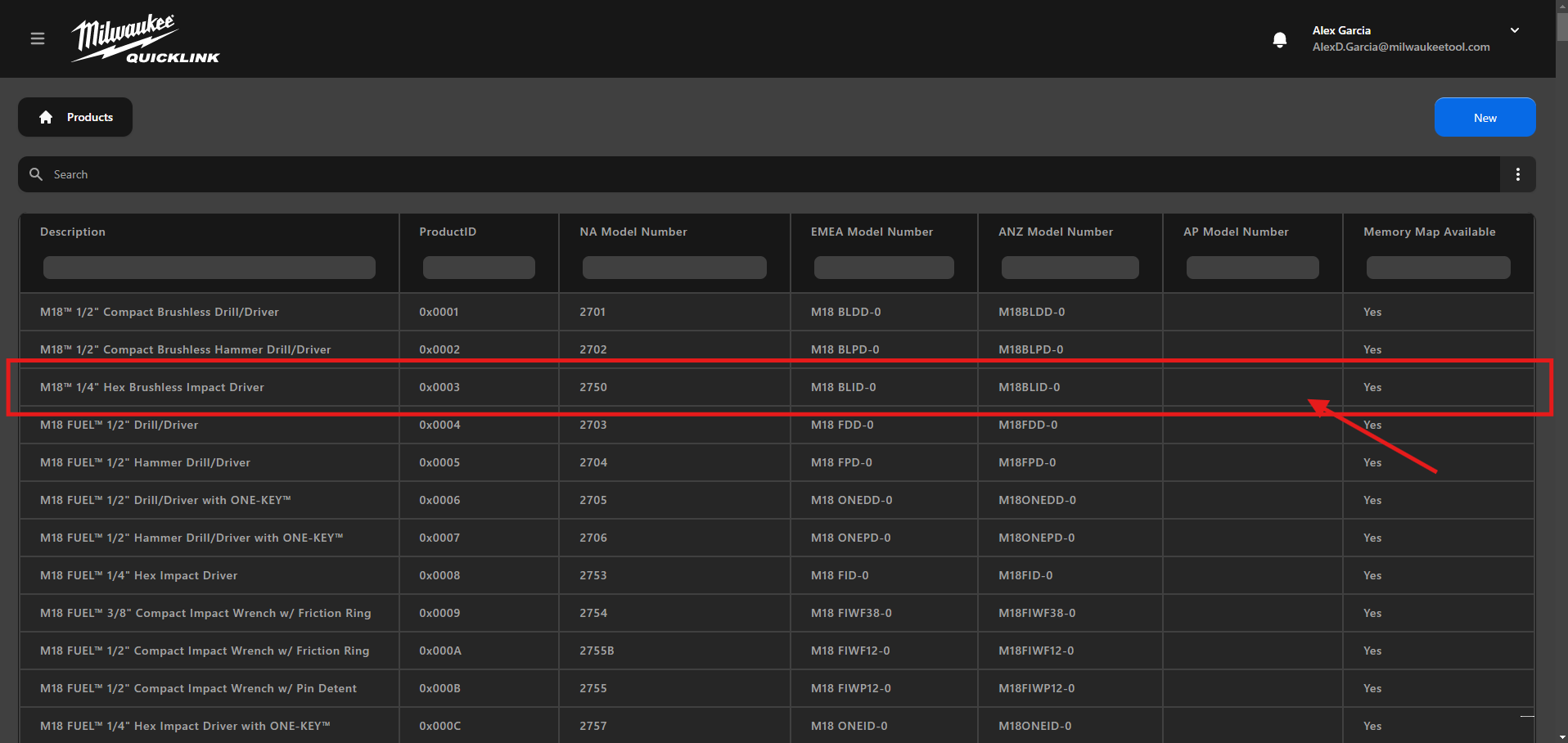
- Search the desired product from the table. Refer to XXXXX [Link to product add page] if your product is not in this list
- Click on the product that you want to edit the Memory Map.
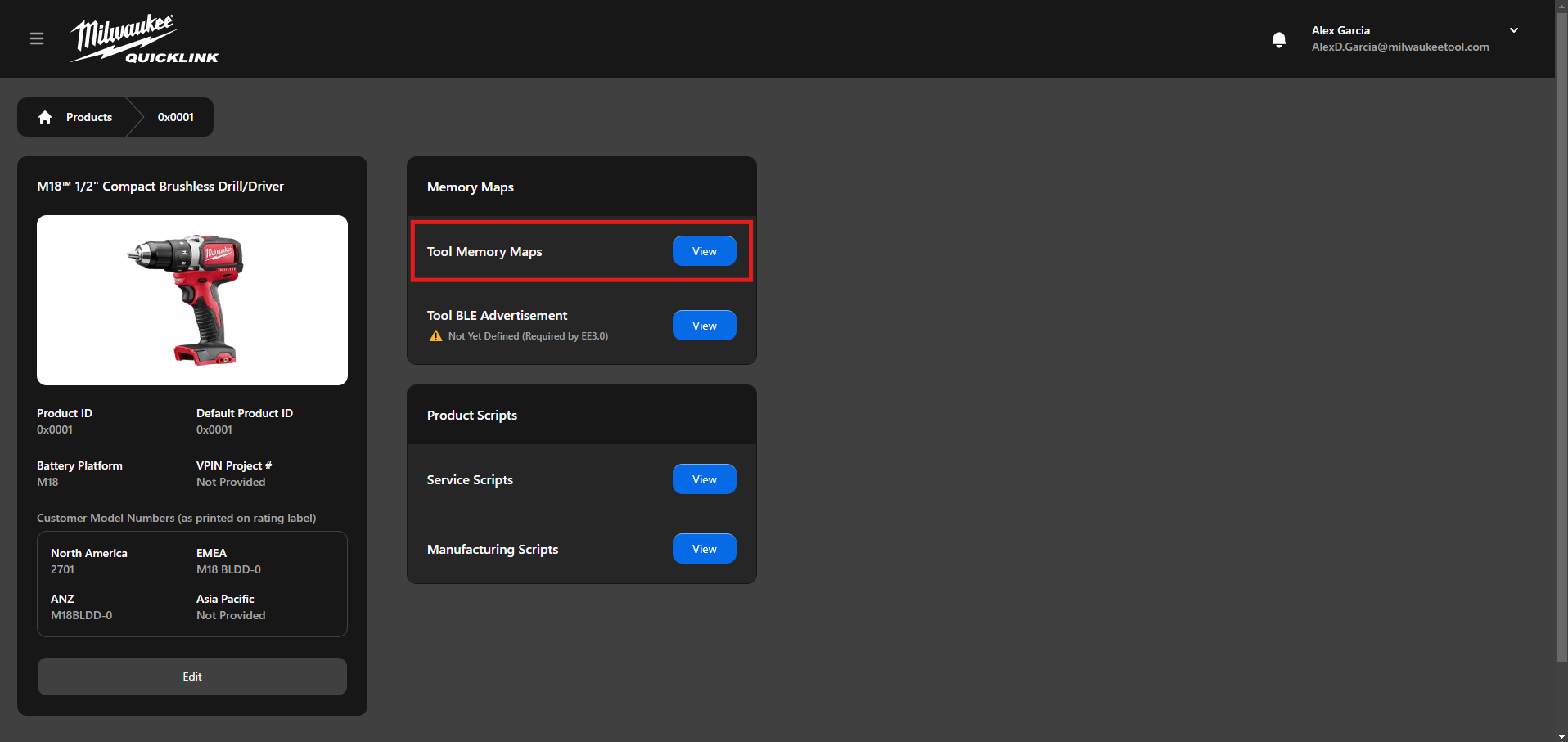
- In the Memory Maps click on the "View" button for the Tool Memory Maps
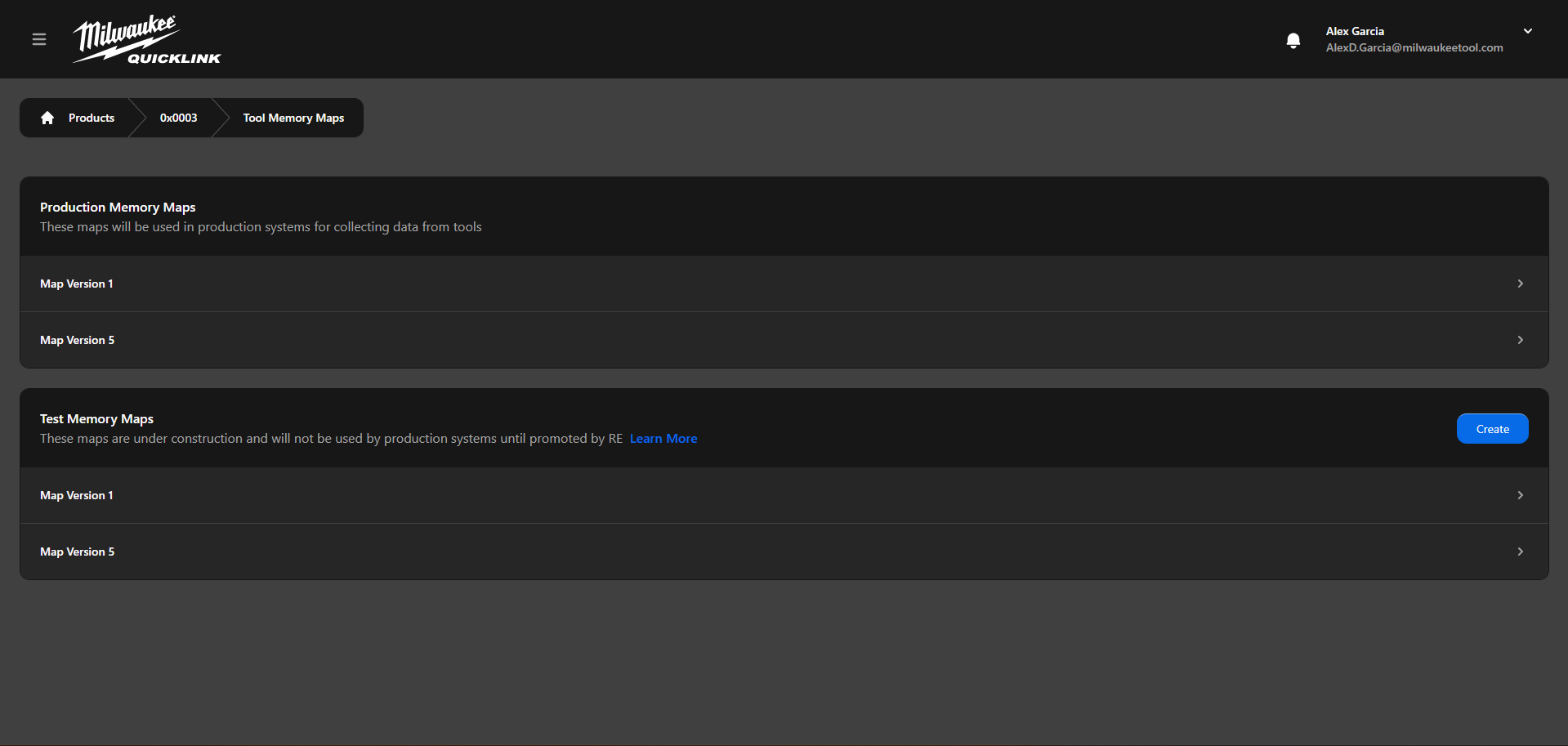
- This will navigate to all the available Memory Maps for the product
note
- Production memory maps are always readonly
- Test memory maps are used to make modification to existing or new memory maps
- Access to Add/Edit memory maps is restricted. If clicking on the cell does not result in any action, it means you do not have the necessary permissions.
Adding Memory Definitions
There are 2 ways to create a memory map, either via manual process by adding every memory definition or via CSV
note
Not all users have access to create memory maps. In order to get access please contact QuickLink Support
- Click on the "Create" button on the Test Memory Maps banner
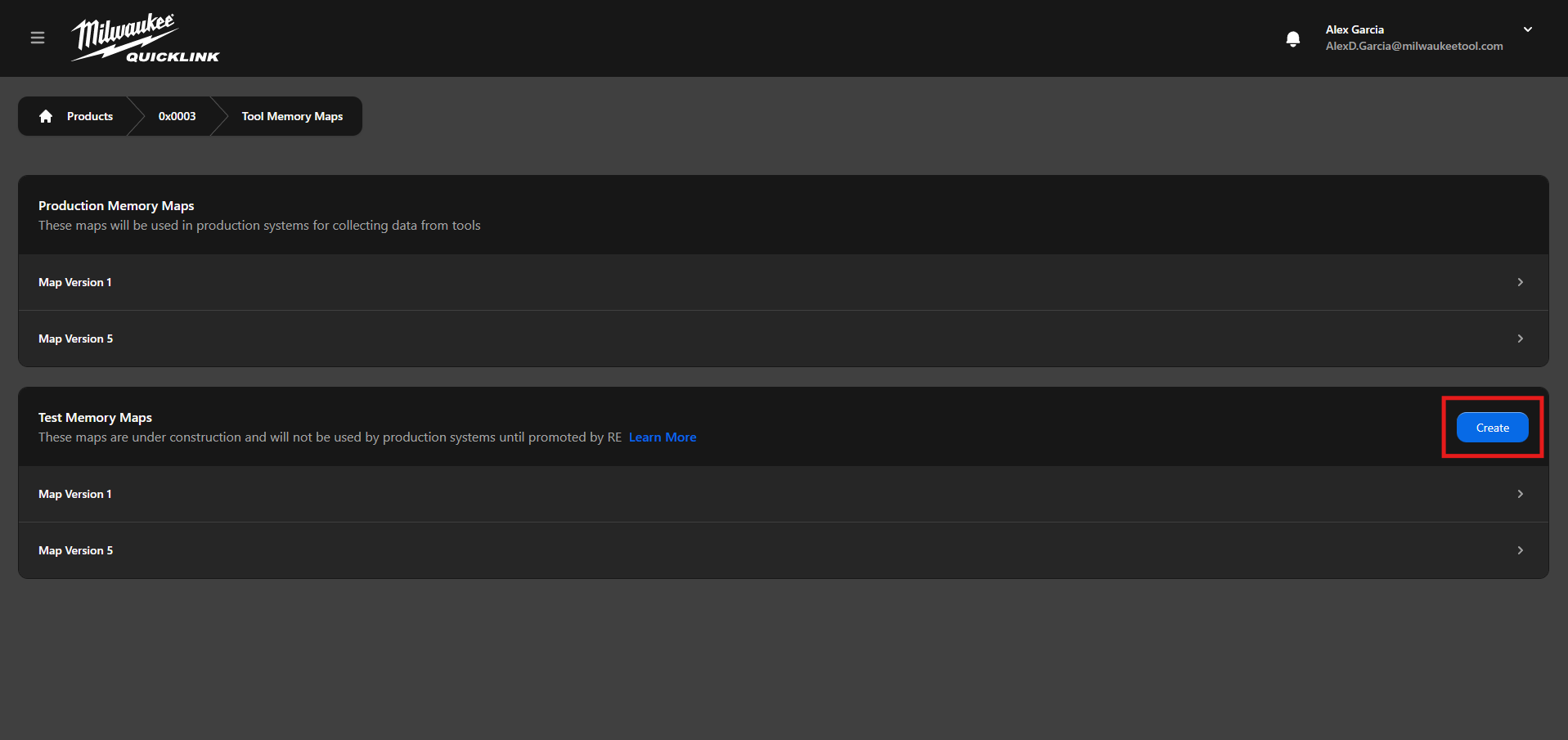
Manual Creation Process:
- Click on "Add Memory Location Definition" then fill in the fields in the dialog
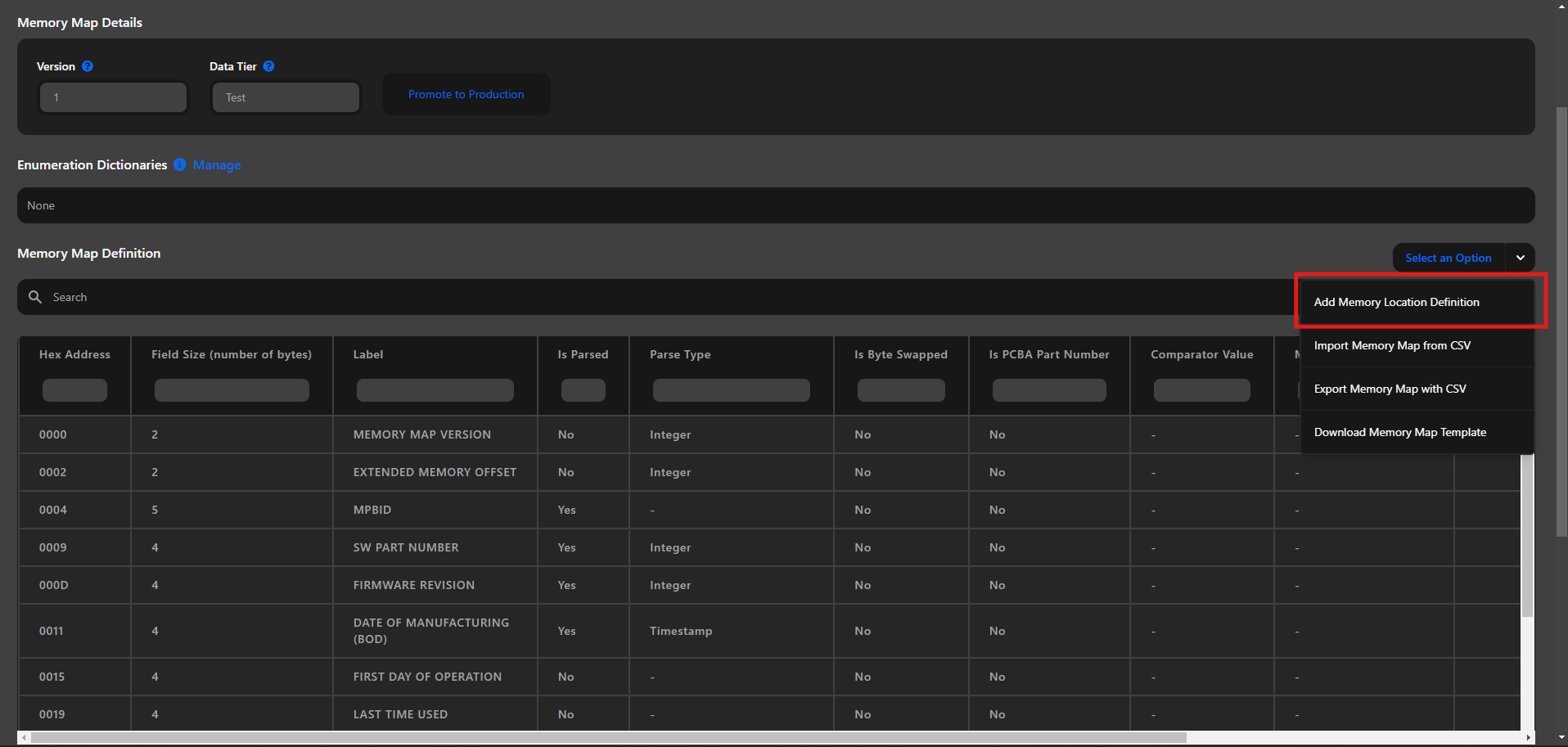
- Repeat the process for every memory definition
- After adding all the necessary memory definitions, ensure to save your changes by clicking on the "Save" button. This step is crucial to prevent loss of data and to ensure that all your modifications are stored correctly.
Using CSV:
- Click on "Download Memory Map Template"
- Make your edits in the CSV file.
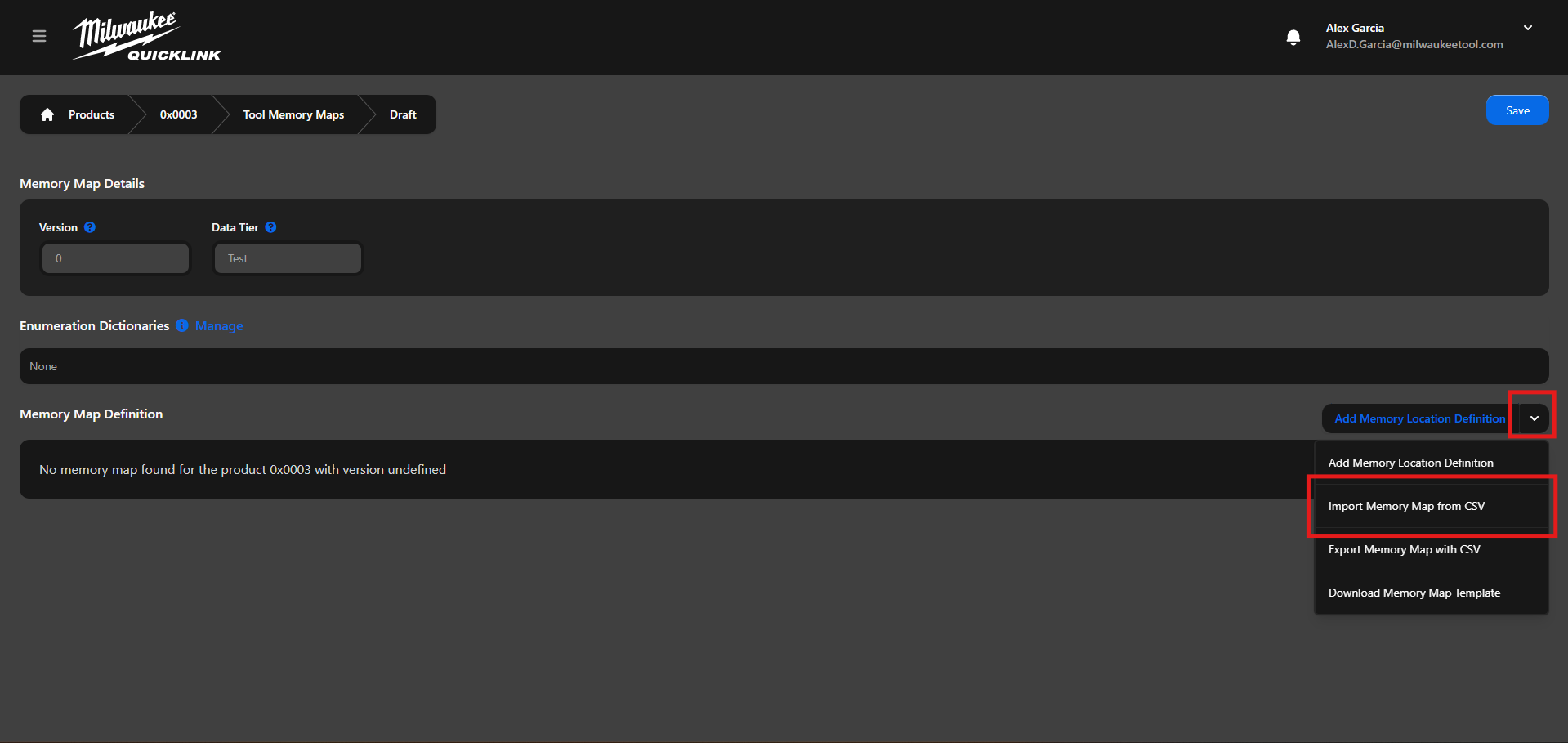
- Click on the “Import Memory Map from CSV”.
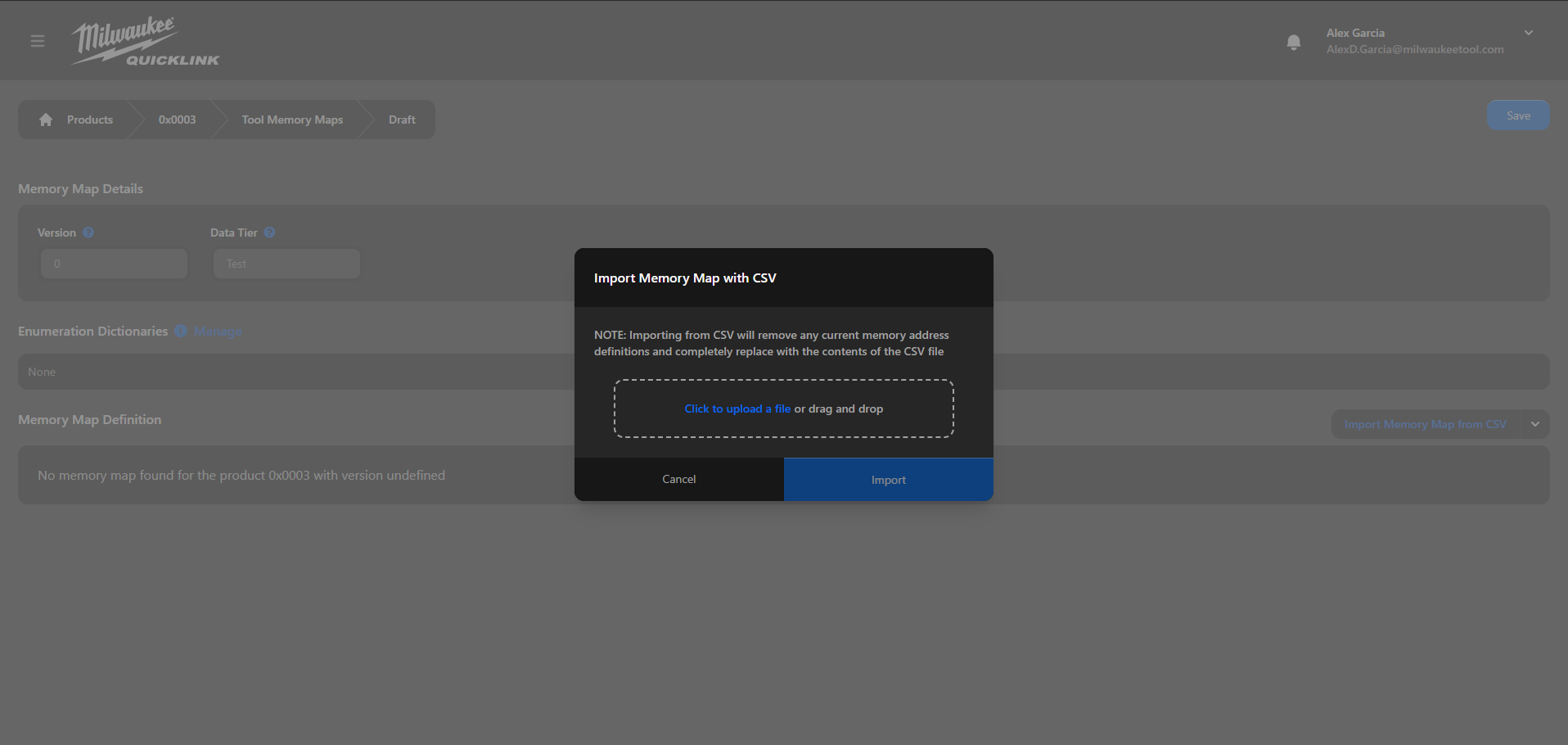
- Select the CSV file and click on the "Import" button
warning
- This will override all the existing memory definitions currently in the table
⚠️
- Ensure to save your changes by clicking on the "Save" button. This step is crucial to prevent loss of data and to ensure that all your modifications are stored correctly.