How to define BLE Advertisement Map
Accessing a BLE Advertisement Definition
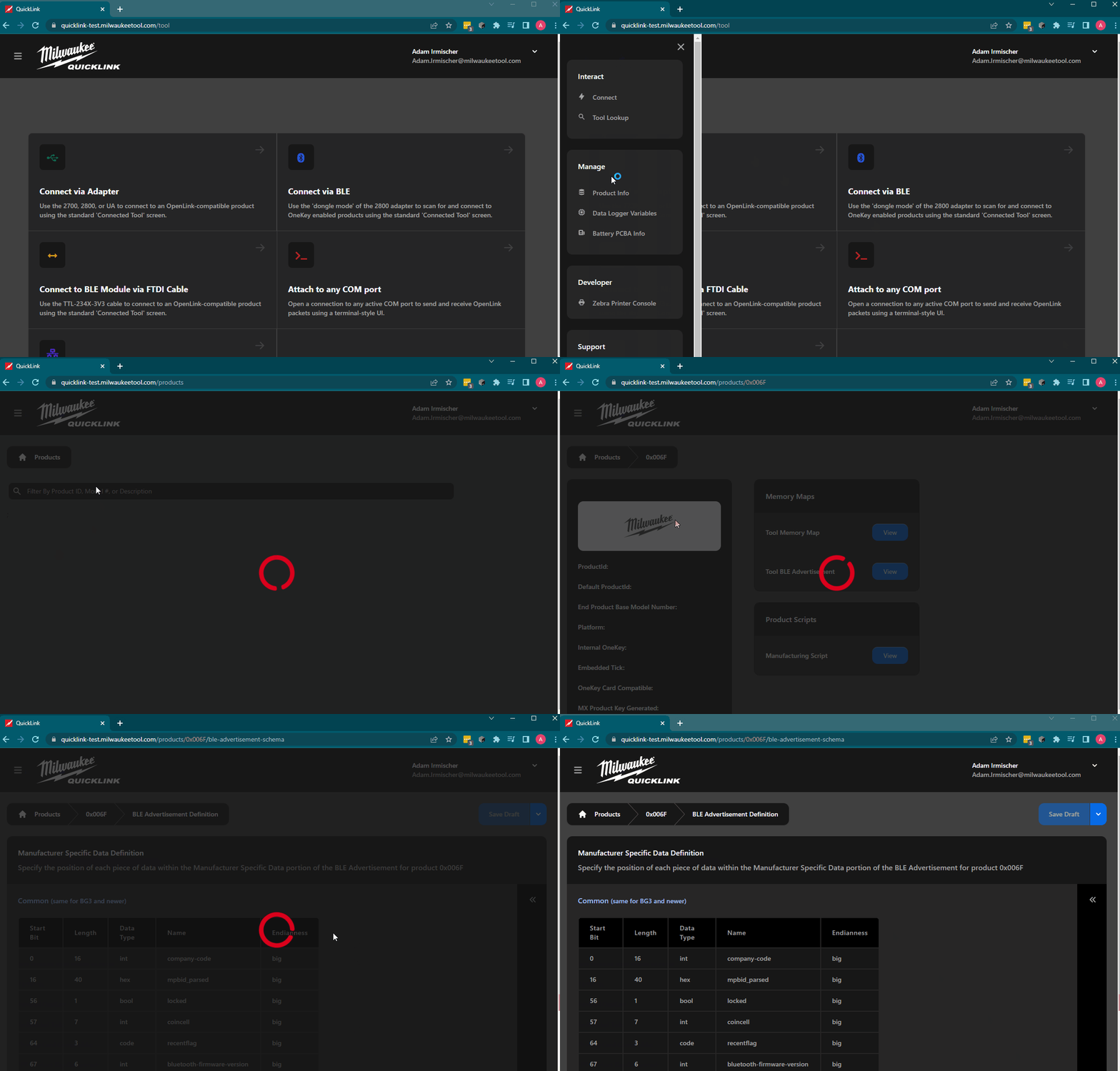
From within QuickLink, navigate to the side bar, then under Manage select Product Info
From there, search for the Product Hex you wish to edit/view and select it
Within the product page, there is a “Tool BLE Advertisement” View button, selecting that opens the schema
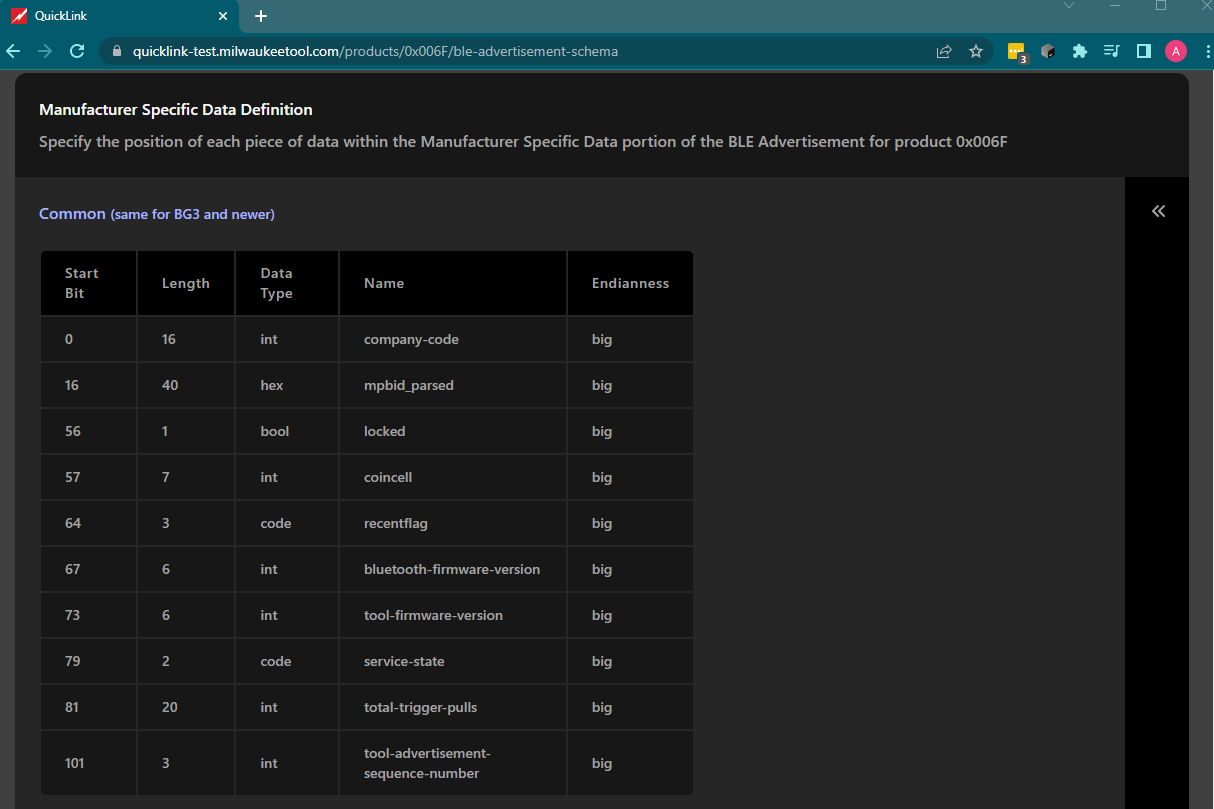
Common Definition
By default, each definition is auto populated with the common definition as defined by the tool and Bluetooth modules
This cannot be edited
Defining Custom Rules
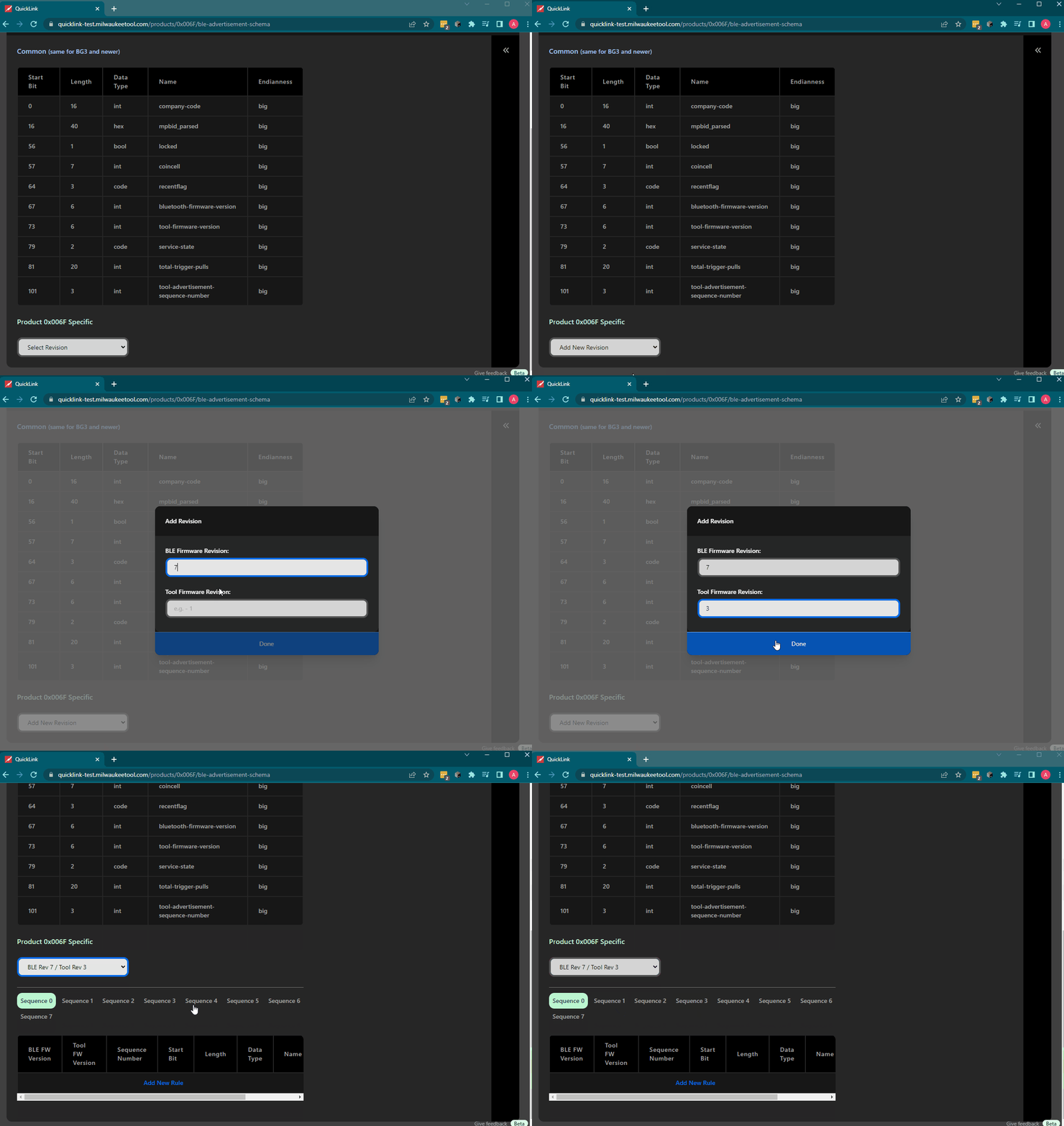
Selecting a Revision
For defining the schema for a custom definition portion, you’ll need to select a revision.
As these could change between firmware versions, you need to specify the firmware you’re defining it for. From there, select the sequence you would like to define.
For parsing, the logic will grab the most recent revision that’s applicable for the firmware. For catching every tool, defining a schema for revisions 0 will accomplish this.
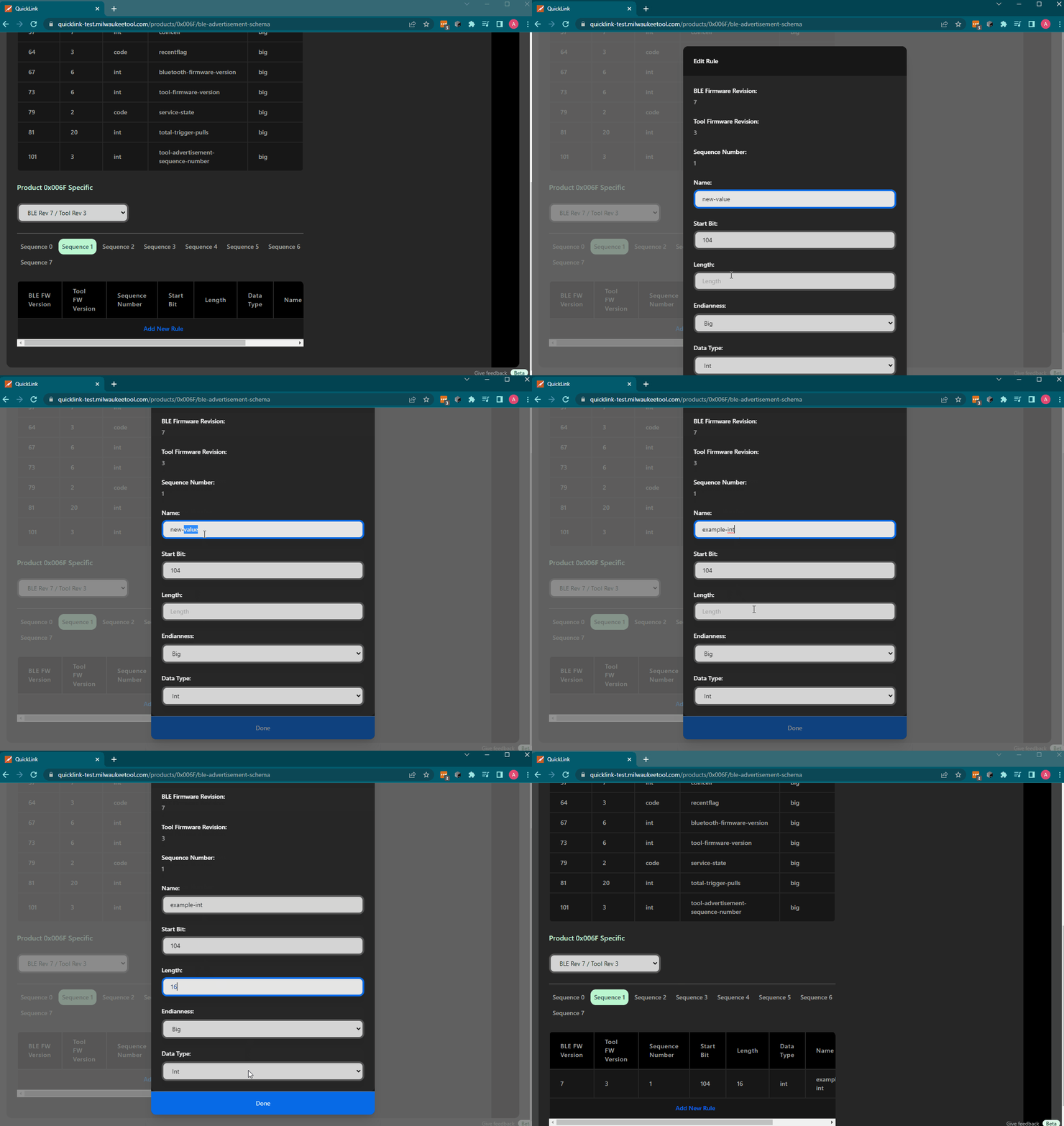
Add a new Rule
New rules require:
- Name
- This becomes the field name when querying
- Start Bit and (bit) Length
- The common module has bitwise level of definition instead of bytes, so the full schema is captured at this granularity
- Starting Bit is auto populated based on the previous rules ending. Defining in order eases figuring this out
- Endianess
- Data Type
- Defines how to interpret the value. Currently supports Integers, Booleans, Codes, and Hex
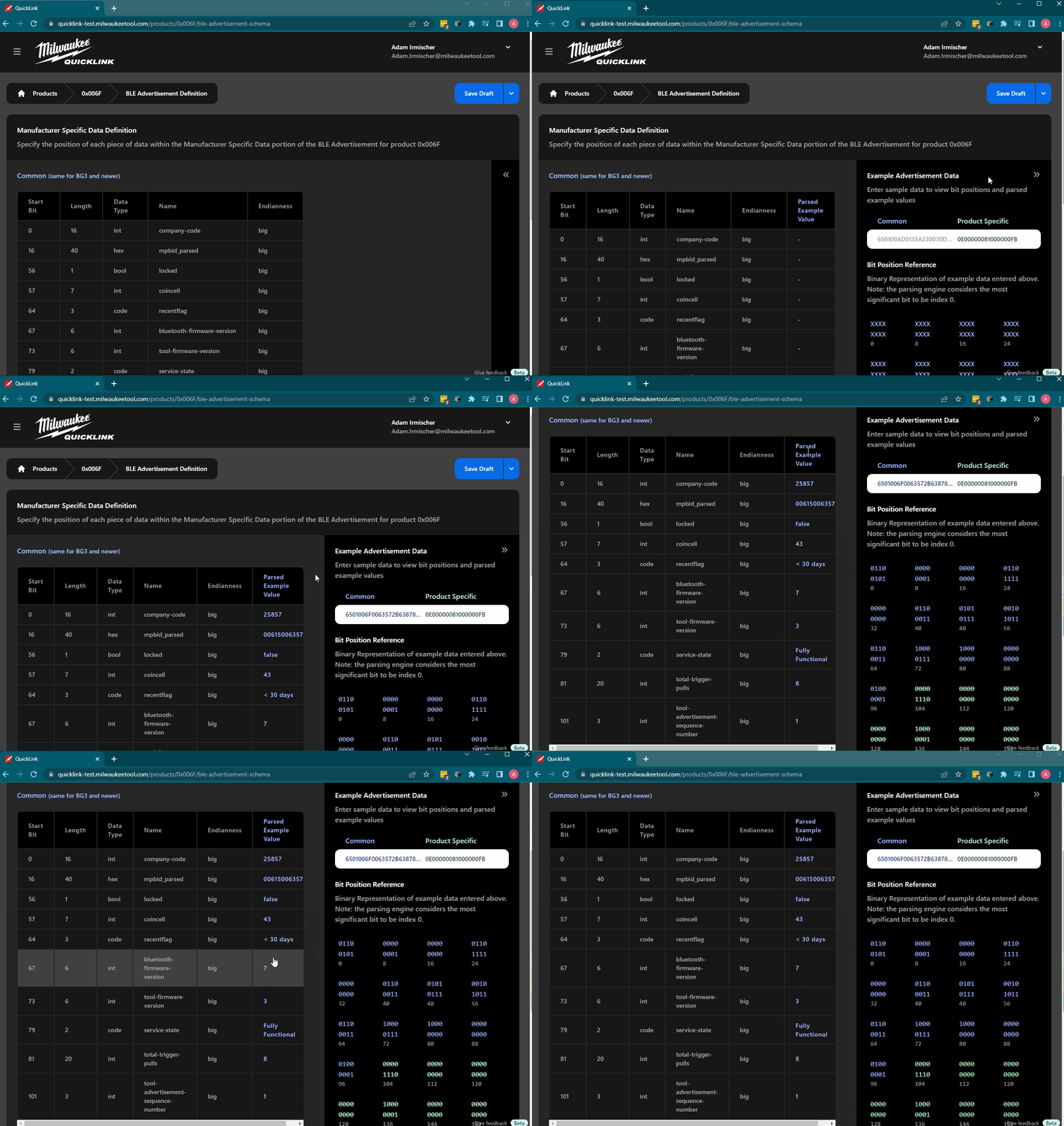
Little endian is inherently more complicated to support so we focused on the platform standard of Big endian. Some features, such as the Example Advertisement Data, do not support it, along with there being potentially unexpected behavior if doing little endian on partial bytes
Defining Enumeration / Code Data Types
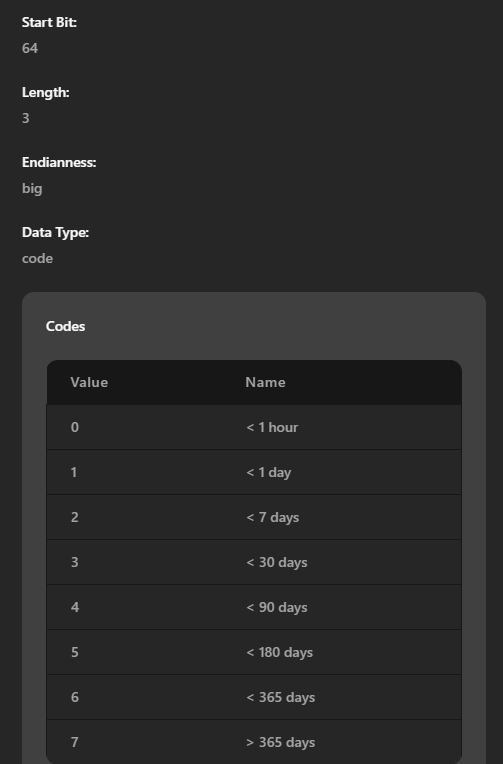
Some values represent a value of an enumeration. This can be capture via the code data type, which allow the parsing to give a human meaning to the value
Testing Example Data
On the right side of the page, there’s a collapsed menu that allows for testing your definition to see if it aligns with your expectations
Saving and Activating
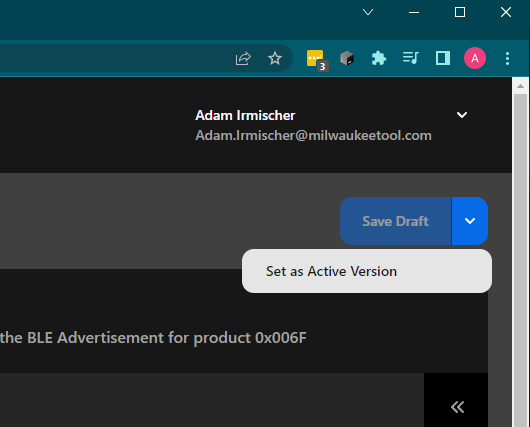
On the top right is the save feature. Initially, all saves are set up for a draft schema, to allow for work in progress.
Once comfortable with the state of the definition, you can set it to be an Active Version. This will initiate (lagged) real time processing of advertisements for this product, along with processing historical records from as far back as 2018.
Data will become available likely within 1 hour after saving